
Only administrators can acces the domain settings.
Once your organization and domain are set up, the next step is to give access to your team. iTraceiT allows administrators to invite users, assign roles, and manage permissions so that each user only accesses what is relevant to their responsibilities.
-
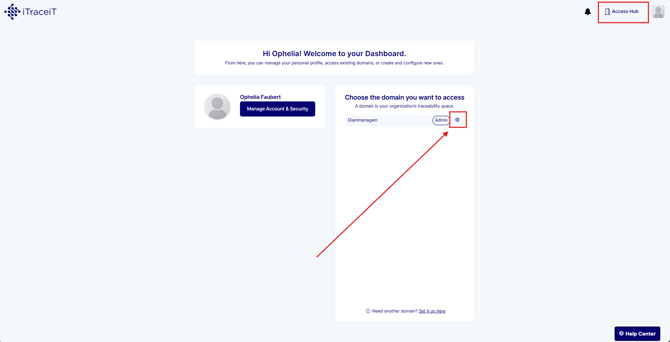
Step 1: Log in to iTraceiT and open your main dashboard. Click the gear icon next to the domain name to open the domain settings.
In the left-hand menu, click on “Team and Access”.
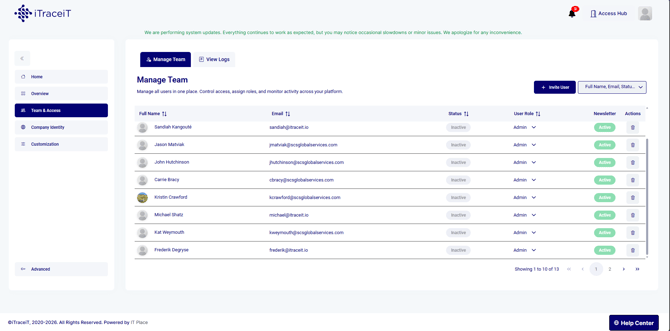
You are now in the area where all user management actions are performed.
-
Step 2: Invite a New User to the Domain
-
In the Team and Access section, click on “Invite User”.
-
Enter the user’s email address.
-
Confirm the invitation.
-
The invited user will receive an email with instructions to join your domain.
For a detailed walkthrough, refer to the article “How to Invite New Users to Your Domain”.
-
Step 3: Understand User Roles
iTraceiT supports different roles to control access and responsibilities.
Admin users can:
-
-
Access and modify domain settings
-
Manage users and permissions
-
Configure billing, subscriptions, and customization settings
-
Standard (member) users can:
-
-
Access operational features based on assigned permissions
-
Work with parcels, QR codes, and traceability data
-
View information relevant to their role
-
Choosing the correct role is essential to protect sensitive settings and data.
-
Step 4: From the Team and Access list, locate the user you want to manage. Update their role by switching between Admin and user (member) as needed.
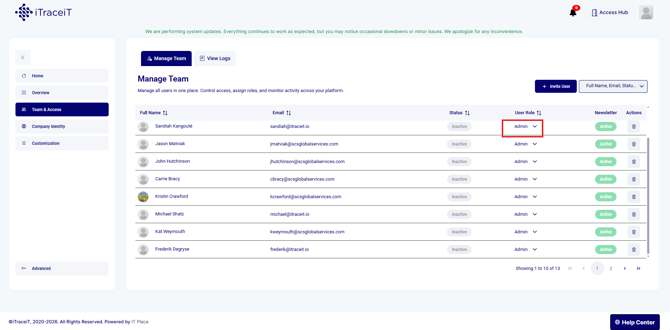
Role changes take effect immediately and adjust the user’s access level accordingly.
For more details, see the article “How to Manage User Permissions.
-
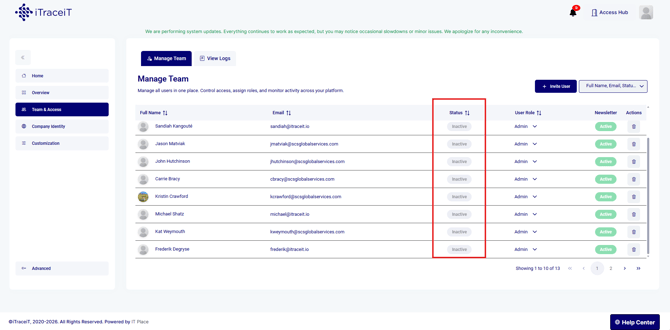
Step 5: In the Team and Access section, you can see the status of each user:
-
Active users currently have access to the domain
-
Inactive users no longer have access but may remain listed for record purposes
-
This overview helps administrators keep control of who can access the domain at any time.
-
Step 6: Regularly review your user list and roles to ensure:
-
Only authorized users have access
-
Roles match current responsibilities
-
Former team members no longer have access
-
For removing or disabling users, refer to the article How to Remove or Disable a User’s Access.
Managing users and permissions is essential to keep your iTraceiT environment secure and efficient. By inviting the right users, assigning appropriate roles, and regularly reviewing access, you ensure smooth collaboration while protecting sensitive domain settings and traceability data.