
Only administrators can perform this action !
Inviting a user is necessary before they can access your domain, view assets or participate in traceability workflows.
You can invite new users directly from your domain settings. The process only takes a few steps and the user will receive an email prompting them to join the domain.
-
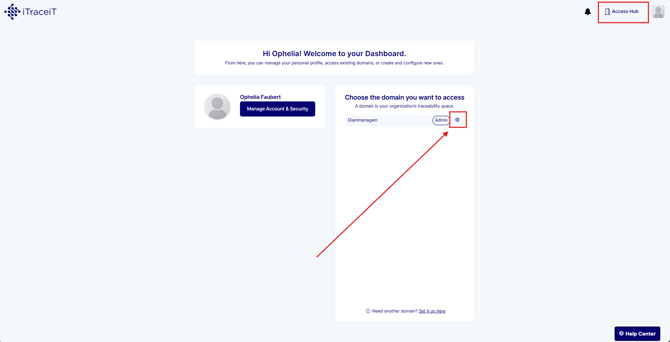
Step 1: click the gear icon next to the domain name to open your settings.
-
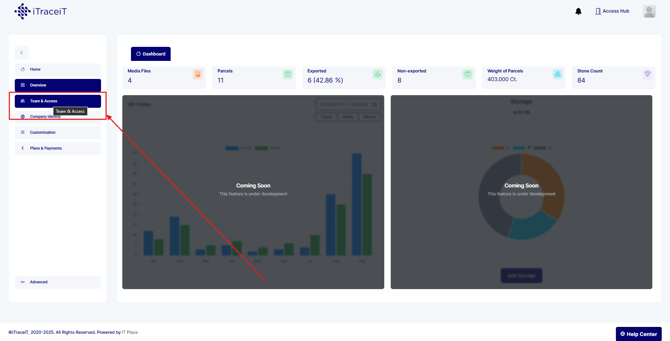
Step 2: In the left-side menu, select Team and Access.
This section shows all existing users and their permission levels.
-
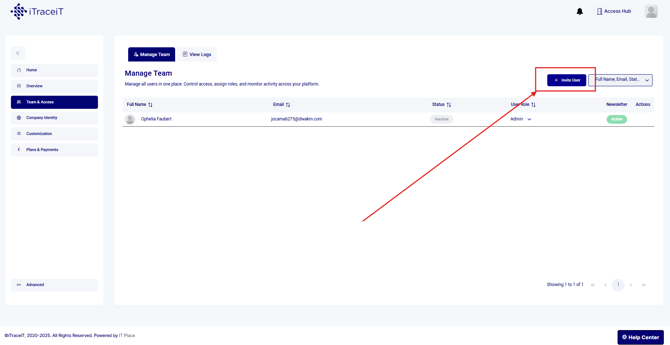
Step 3: Click on the button "Invite User"
-
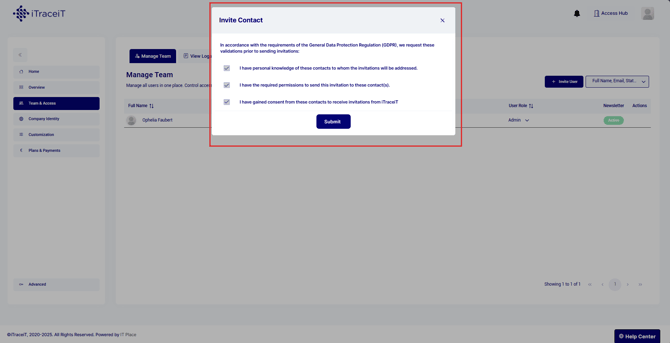
Step 4: Tick all the cases and click on the button "Submit "
-
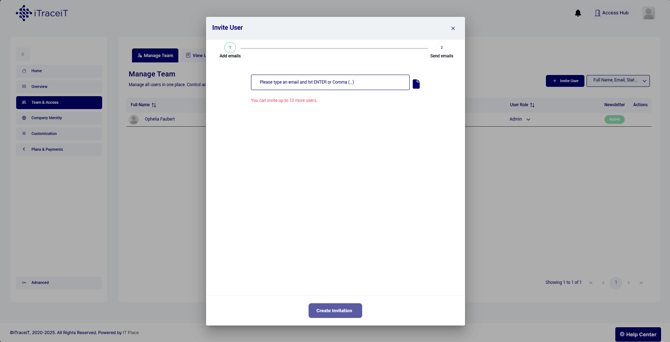
Step 5: Enter the user’s email and hit Enter on your keyboard and click on the button "Create Invitation"
-
Step 6: Click on the button Send Invitation. The user will receive an email containing a link to accept and join the domain.
Once accepted, the user will appear in your Team and Access list.
Inviting users to your domain is quick and essential for collaboration. As an administrator, you can control who enters your domain and what level of access they receive. If a user does not receive their invitation, you can resend it at any time directly from the Team and Access page.