
Only administrators can acces the domain settings.
This article explains how to open your domain settings and what you can do in each section.
1. Open the Domain Settings of your organization
-
Log in to iTraceiT and go to your main dashboard.
-
In the area “Choose the domain you want to access”, find your domain.
-
Click the gear icon next to the domain name to open the configuration space.
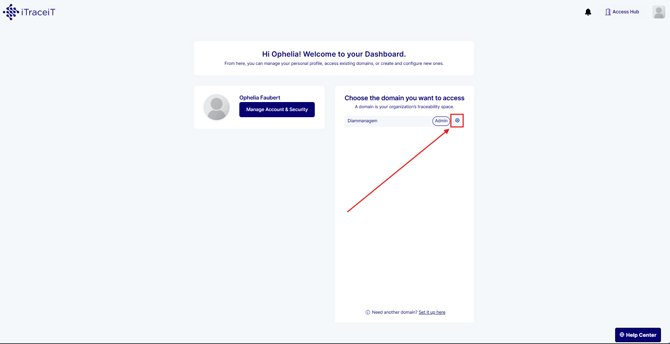
You are now inside the Admin view of that domain.
2. Understand the Domain Settings menu
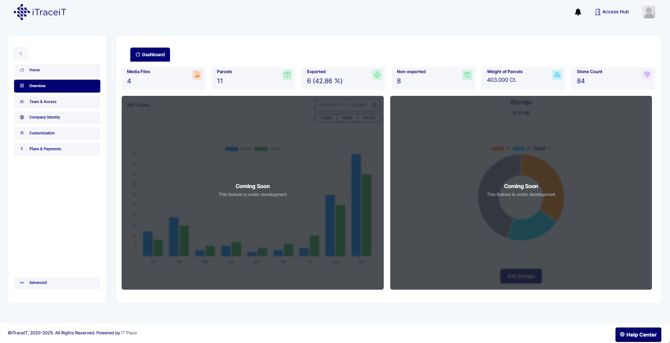
On the left side, you will see the main menu with several sections such as Overview, Team and Access, Company Identity, Customization, and Plans and Payments.
All domain level configuration is done from here.
3. Team and Access
The Team and Access page is where you manage the people who can use your domain and their permissions.
From this page, an admin can:
-
Invite new users to the domain
-
Set each user as admin or user
-
See who is active or inactive
For detailed steps on how to add users and update roles, please refer to How to Manage Your Team and Users’ Access
4. Company Identity
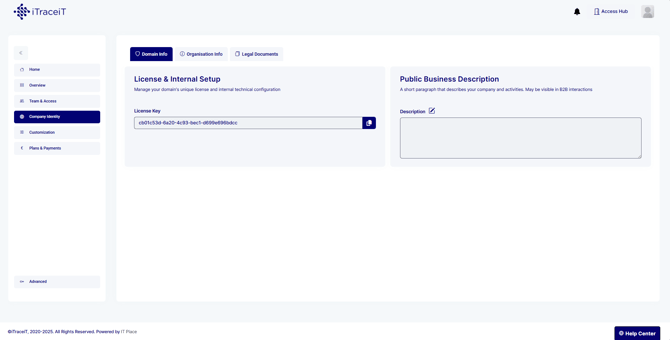
The Company Identity section lets you configure the public and internal information of your organization. It has three tabs: Domain Info, Organisation Info and Legal Documents.
4.1 Domain Info
In the Domain Info tab you can:
-
View your License Key
-
Add or update your Public Business Description that can be shown in B2B interactions
4.2 Organisation Info
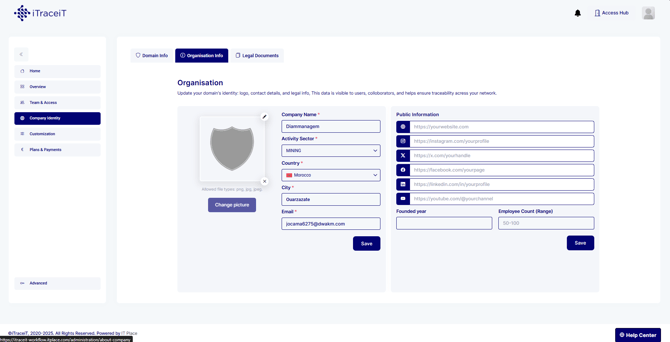
In the Organisation Info tab you can:
-
Set or update your Company Name
-
Choose your Activity Sector
-
Set Country and City
-
Edit your email address
-
Add public links such as website, social media and other company information
For changing your activity or sector, refer to How to Change Your Sector or Activity
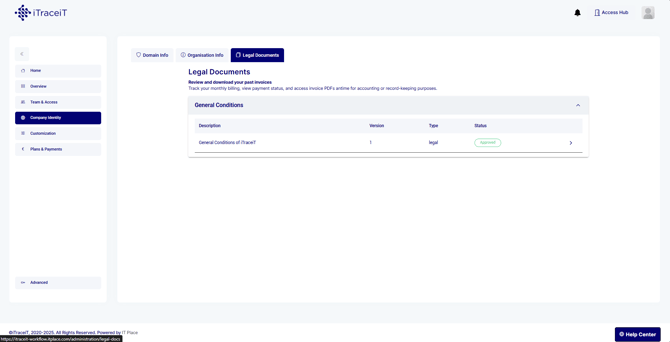
4.3 Legal Documents
The Legal Documents tab allows you to store and manage legal files that are relevant for your domain, such as contracts or policies, if enabled for your setup.
5. Customization
The Customization section is where you adapt iTraceiT to your internal way of working. It contains several tabs.
5.1 Extra Fields
Use Extra Fields to create additional data fields that do not exist in the standard parcel or stone structure.
Typical examples are clarity, color, grading certificate number, etc.
For detailed steps on how to add extra fields, please refer to this article how to add extra fields.

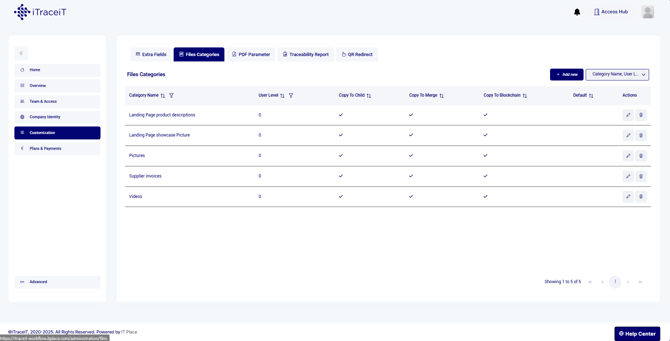
5.2 Files Categories
Files Categories help you organize the documents you attach to parcels and stones.
You can:
-
Create new categories
-
Decide which categories are copied to child parcels or merge parcels
-
Decide which categories are exported to the blockchain
For detailed steps on how to add new files categories and configure them, please refer to this article on How to Create and Manage File Categories.
5.3 PDF Parameter
The PDF Parameter tab is used to configure templates for printed QR code labels and sticker sheets.
From here you can:
-
Select a template layout
-
Preview how your labels will look
-
Adjust parameters and save your preferred setup

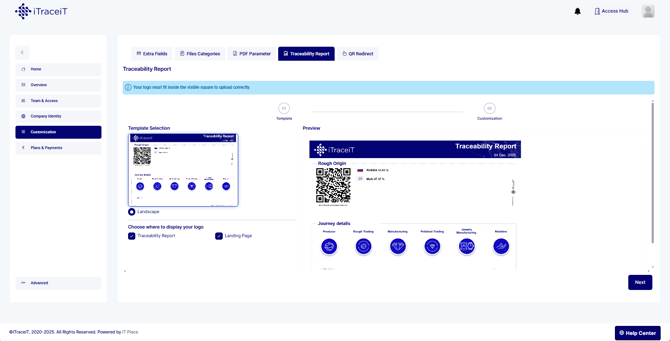
5.4 Traceability Report
You can:
-
Upload a logo for the report
-
Adjust the layout and preview the result
-
Apply the template to your domain
For step-by-step instructions on how to upload or change your logo, please see the article How to Upload or Change Your Company Logo.
5.5 QR Redirect
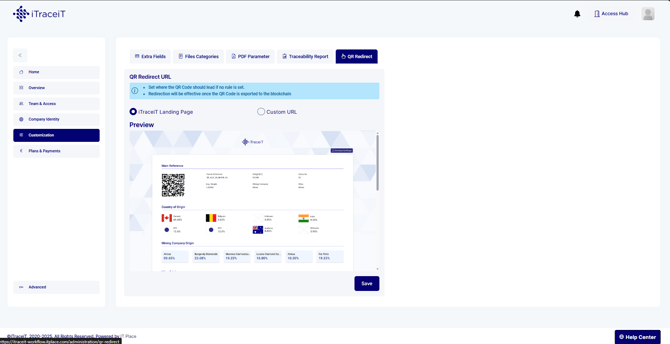
The QR Redirect tab defines where the QR code will send the user when it is scanned.
You can:
-
Keep the default iTraceiT landing page
-
Or select a Custom URL if your project requires a specific destination
Redirection is effective once the QR code is exported to the blockchain.
6. Plans and Payments
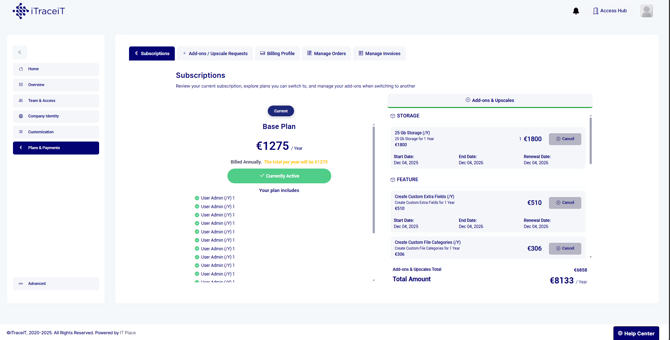
Plans and Payments is where you manage your subscription, add-ons, and billing information.
6.1 Subscriptions
The Subscriptions tab shows:
-
Your current plan
-
Billing frequency and renewal date
-
The list of included items and active add-ons
For more details, see:
How to Subscribe to a Plan, How to Renew Your Subscription, or How to Cancel Your Subscription
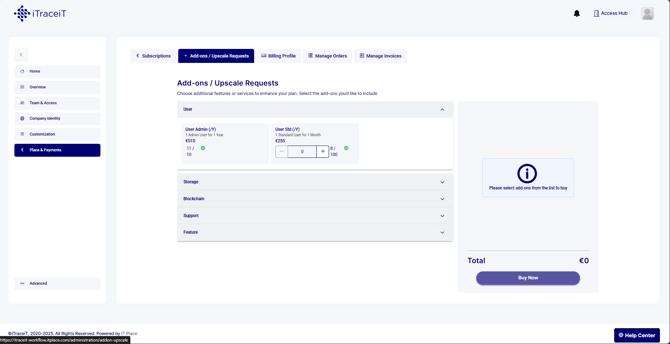
6.2 Add-ons and Upscale Requests
Use this tab when you need more capacity or features.
You can buy:
-
Additional admin or standard users
-
Extra storage
-
Additional support or other features, depending on your contract
After selecting the items, you can submit your request and proceed to payment.
For guidance, refer to: How to Add Additional Services
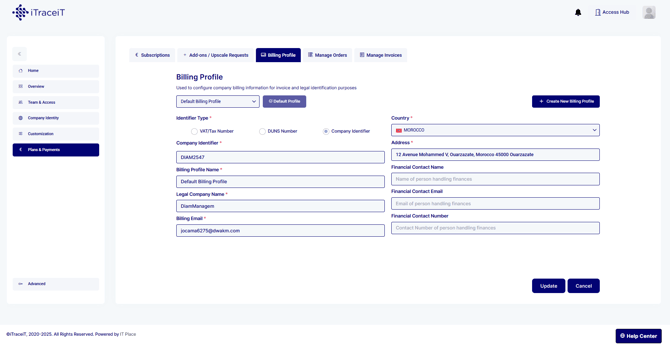
6.3 Billing Profile
The Billing Profile tab stores your billing and legal information, such as:
-
Identifier type and number
-
Legal company name
-
Billing address
-
Financial contact details
Make sure this information is always up to date for correct invoicing.
For more details, see: How to Manage Company Billing Details
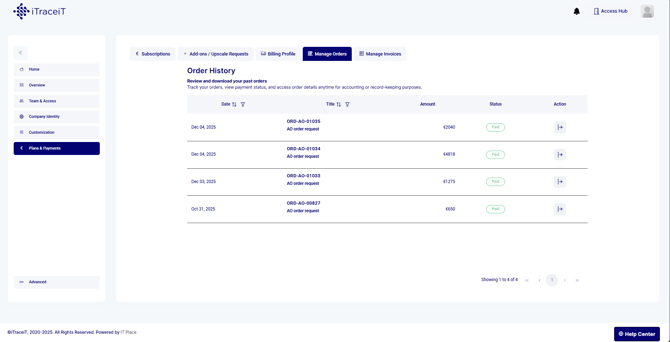
6.4 Manage Orders
This tab shows a history of your orders created through the platform.
You can:
-
See order dates, titles, amounts and statuses
-
Open specific orders for more detail
6.5 Manage Invoices
In Manage Invoices you can:
-
See all invoices that were issued for your domain
-
Check payment status
-
Download invoice PDFs for your accounting records
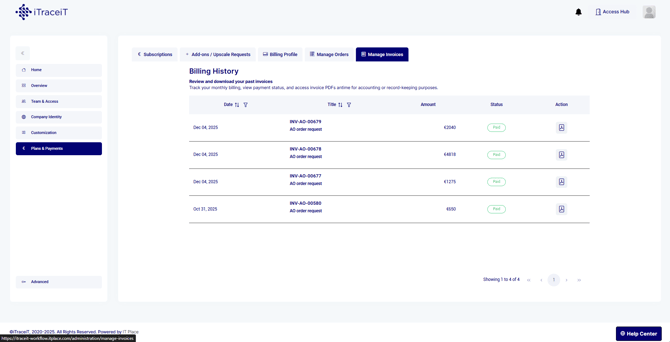
For instructions, see: How to Download Your Invoices
Configuring your Domain Settings correctly is essential for running iTraceiT efficiently at scale. These settings allow you to control access, ensure consistent company information, tailor the platform to your workflows, and manage subscriptions and costs transparently.
By regularly reviewing and maintaining your domain configuration, you strengthen governance, reduce operational friction, and ensure that your traceability and certification processes remain reliable, compliant, and ready to grow with your business.