
This enhancement allows you to specify multiple origins for your parcels or products directly during the QR code creation. This guide will walk you through the steps to utilize this new feature effectively.
What You Need to Know
- You can now specify multiple origins for your product or parcel during QR code creation
- You can specify the weight percentages as well
- Irreversible After Saving : Once you save the QR code with the specified origins, you cannot modify the origins
If you need to make changes, you must delete the existing QR code and create a new one.
Step-by-Step Guide to Add Multiple Origins
Step 1: Access the QR Code Creation Tool
- Log in to your account
- Select the button "Create a New QR" to initiate the QR code creation process
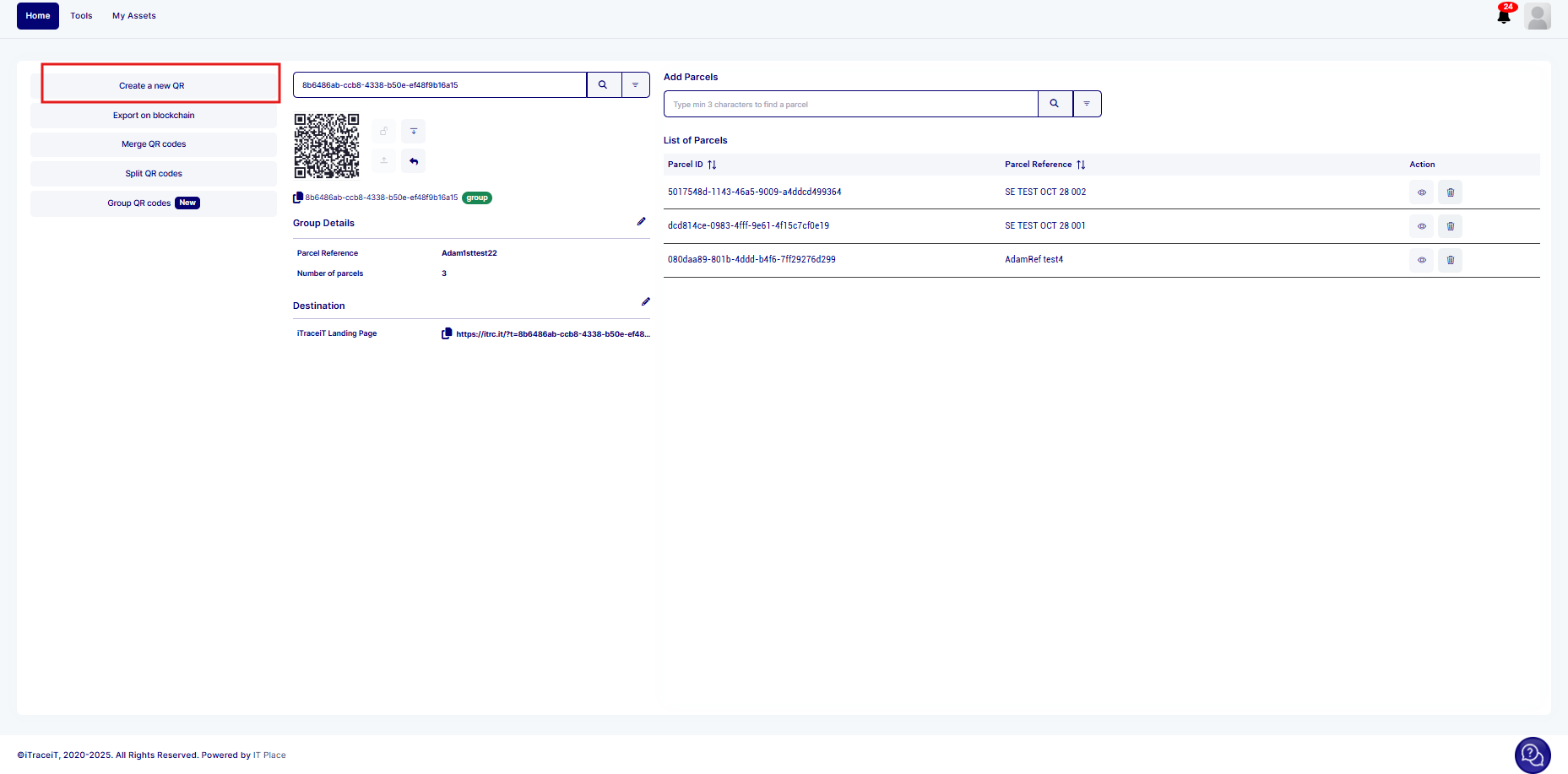
Step 2: Enter Product/Parcel Details
- Fill in the basic information: Provide the necessary details about your product or parcel, such as reference, weight, and other relevant information Specify Origins
- In the country of origin, choose "Multi Origin" as option
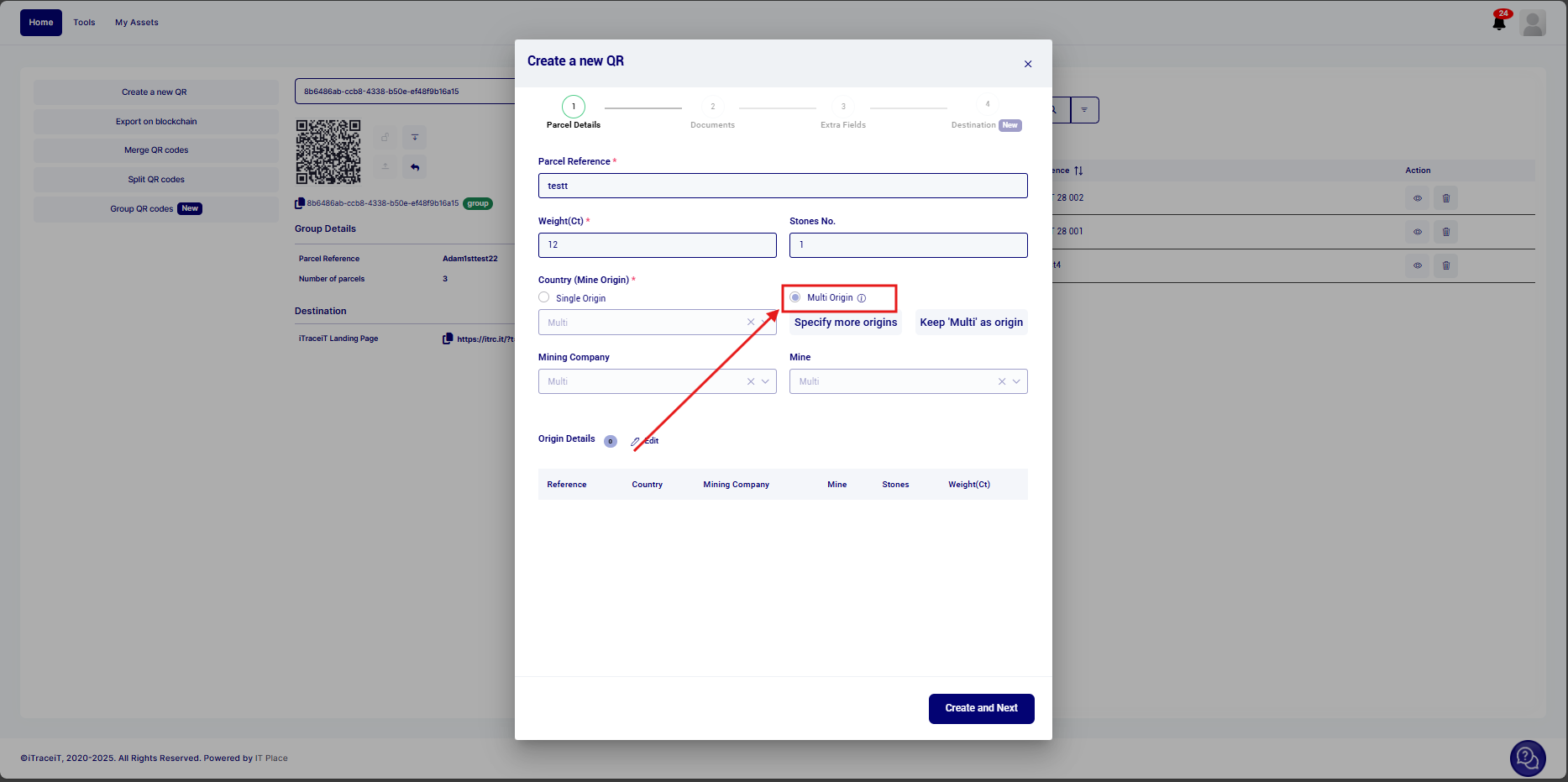
- Click on Specify more origins to select all the origins of your product/parcel. Input the details for the first origin and click on button "Add Origin" to create and provide the details for each additional origin as required
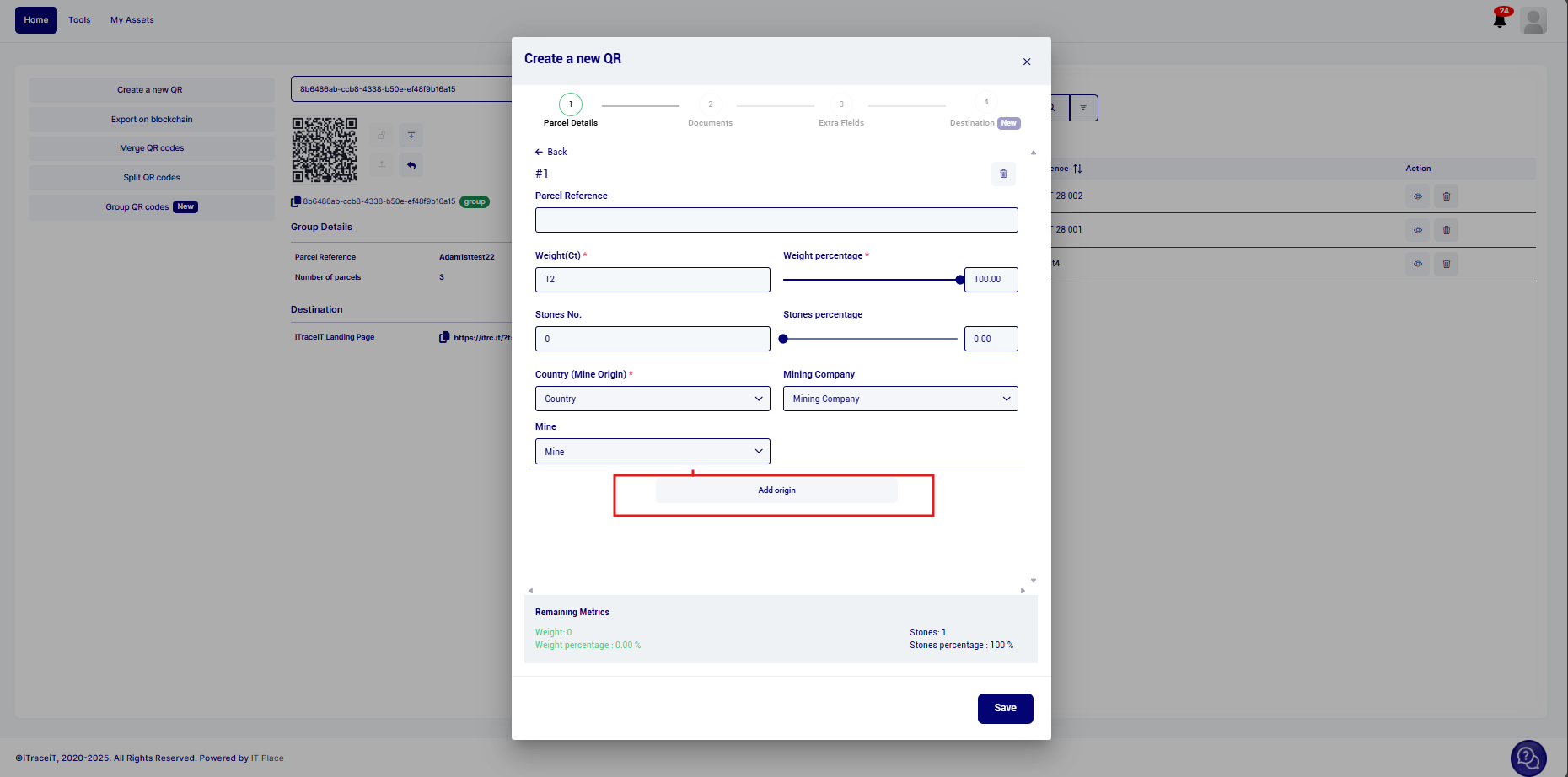
- Review All Origins : Ensure that all specified origins are accurate. Double-check the information, as you will not be able to change it once saved
- Add your documents and Extra fields if needed.
- Click the 'Save' button to generate your QR code with the specified origins.
This new feature streamlines the process of specifying multiple origins for your products or parcels, enhancing the accuracy and efficiency of your inventory and shipping management.
If you have any questions or need further assistance, our support team is always here to help.
For any additional help, please contact our support team at support@itraceit.io.