
In iTraceiT, merging QR codes means combining several parcels from different origins into a single new parcel.
It is essentially a mixing process: the merged QR code represents one consolidated parcel with a general mixed origin, while also keeping a detailed breakdown of each source.
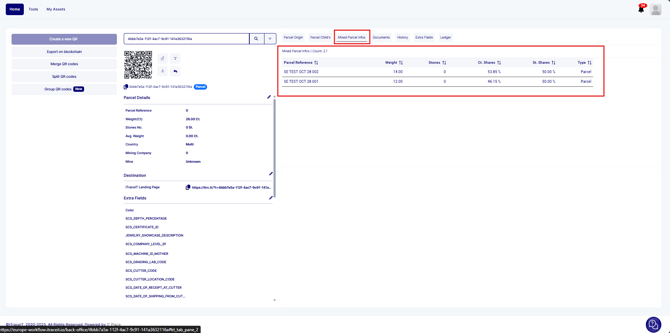
For example, the result could show 90% India and 10% USA making up 100%.
This ensures full transparency, as the new parcel carries both the mixed identity and the precise contribution of each original parcel.
You can either merge parcels manually or in bulk.
Note: Target parcel should be empty or a mixed parcel
To merge QR codes manually :
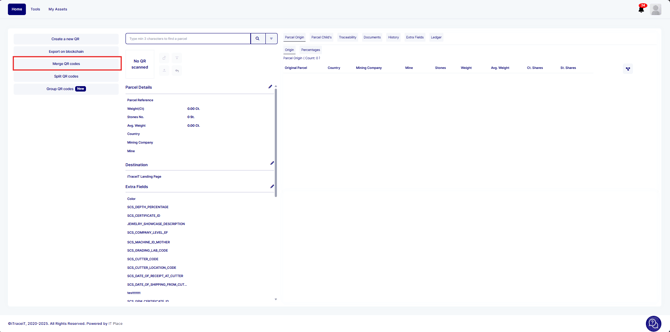
- Click on the button "Merge QR codes" on the homepage
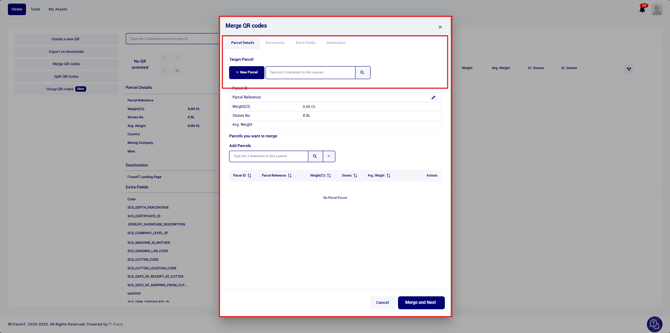
2. Here, you need to define the target QR code that will hold the merged data. You have two options: you can either create a new QR code to merge all the other QR codes into or select an existing QR code for this purpose
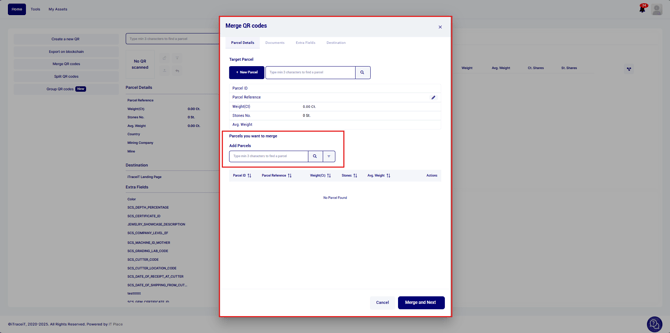
3. Put the cursor in the search bar, and scan a QR code you want to add or edit to find the QR codes you want to merge. Repeat the action to add all the QR codes you want
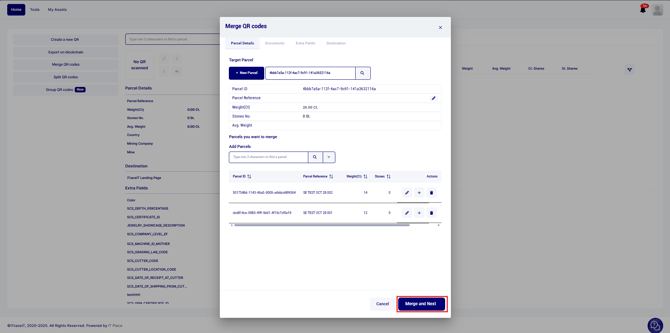
4. Click on the button "Merge and Next"
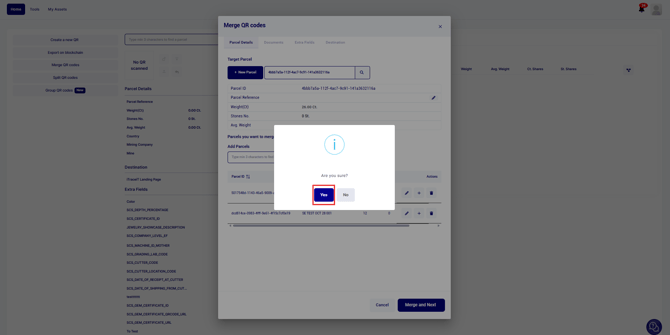
5. Press the button "Yes"
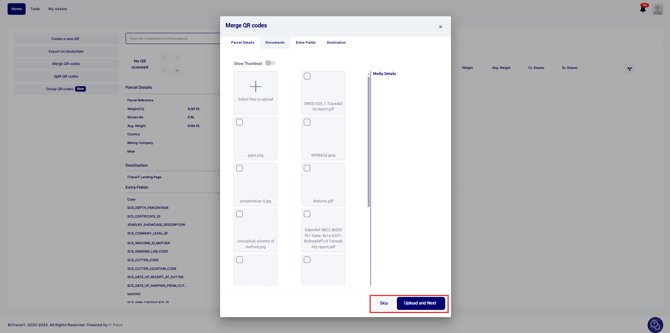
6. You can either add new documents/Extra fields to the merged parcels or skip this step
The QR codes will be merged, and you will see the traceability to the original QR code as well as the percentages proportions
To merge QR codes in bulk:
1. On “Import Parcels” page, click on “Import Guide”
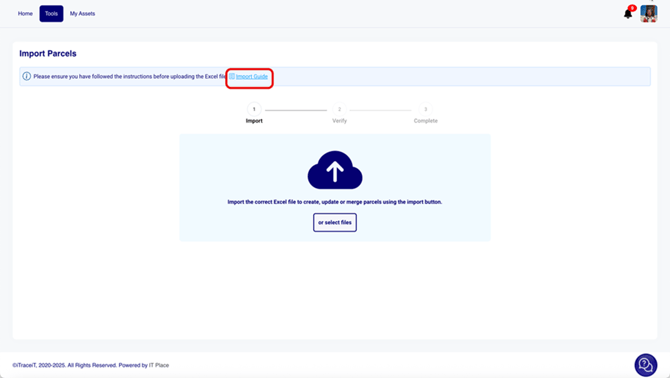
2. Then click on “download” for Merging parcels
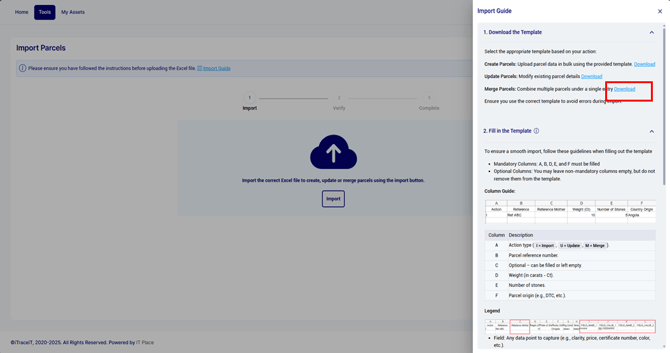
3. Fill in the Excel template and Save your file
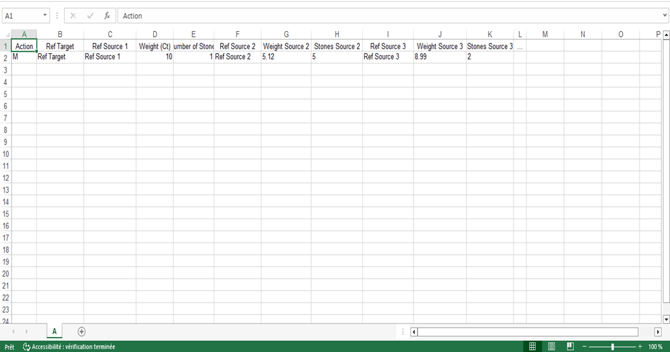
Below are the key columns to fill and data to add:
- Column A – Action: enter M to indicate a merge.
- Column B – Ref Target: enter the internal reference ID of the target parcel
(the one that will contain the merge) - Column C – Ref Source 1: enter the reference ID of the first source parcel
- Column D – Weight (ct) Source 1: enter the weight taken from source 1 (in carats)
- Column E – Number of Stones 1: enter the number of stones taken from source 1
- Column F – Ref Source 2: enter the reference ID of the second source parcel
- Column G – Weight Source 2: enter the weight taken from source 2 (in carats)
- Column H – Stones Source 2: enter the number of stones taken from source 2
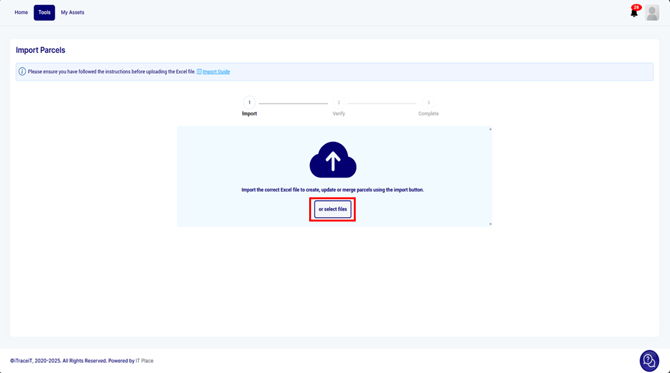
4. Go back to the Import Parcel ‘s page. Drag and drop your file or click on “Select Files” to import your excel and follow the process
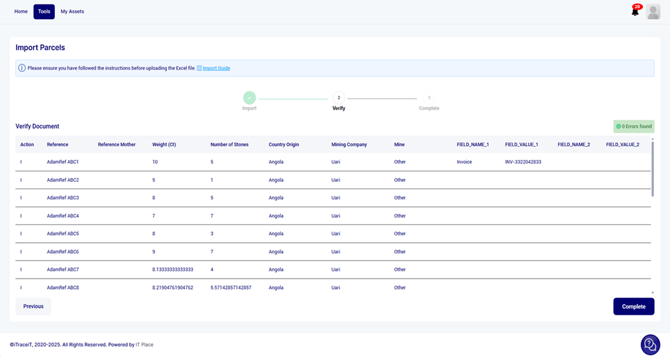
5. The system will validate the data and notify you of any errors or successful uploads.
Merging QR codes in iTraceiT streamlines parcel management by allowing multiple sources to be tracked within a single, consolidated parcel. This process ensures complete traceability and transparency, as every contribution is accurately represented. As a result, users benefit from efficient workflows and clear visibility into parcel origins and compositions.