
Only administrators can acces the domain settings!
Assigning the right permissions is essential for controlling who can invite users, edit settings, handle imports or manage assets.
Managing permissions is done through the Team and Access section of your domain settings. From here, you can view each user’s role and adjust it when required.
This article explains how to review and update user roles so your domain remains properly managed and secure.
-
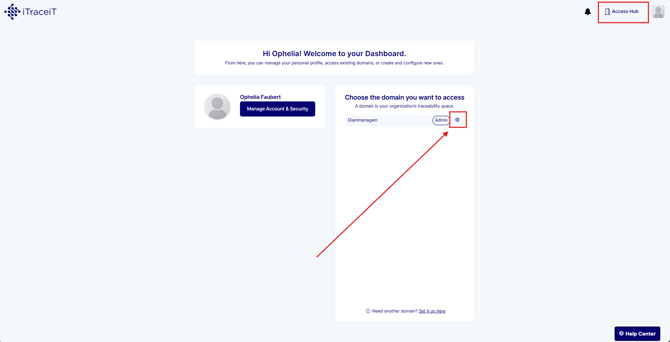
Step 1: From your domain dashboard, click the gear icon next to the domain name to open your settings.
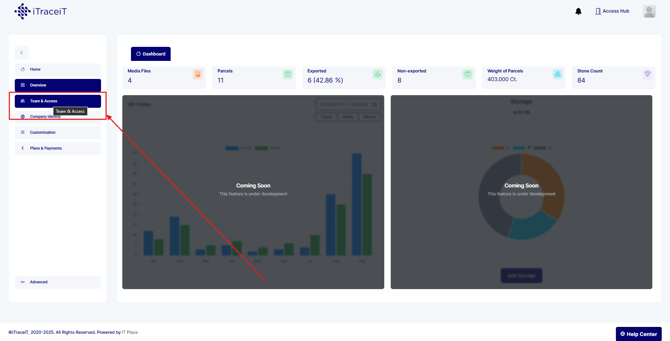
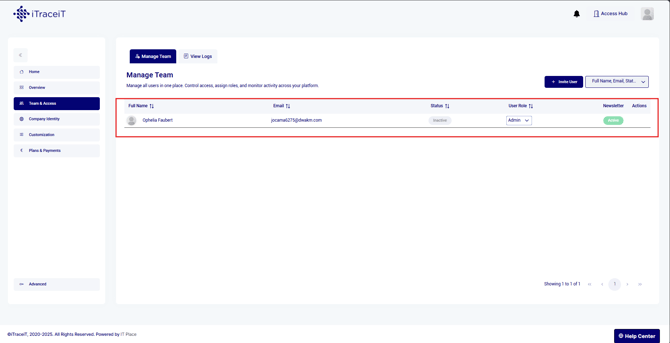
- Step 2: Select Team and Access from the left menu. This page displays all users in the domain along with their assigned role.
- Step 3: Each user has one of the following roles:
-
- Admin: Full access to domain configurations, user management, billing and all functional tools
- User: Limited operational access focused on creating and managing assets
You can view all roles directly in the user list.
-
Step 4: To change someone’s role, click the User Role options menu next to their name. Select the new role you want to assign.
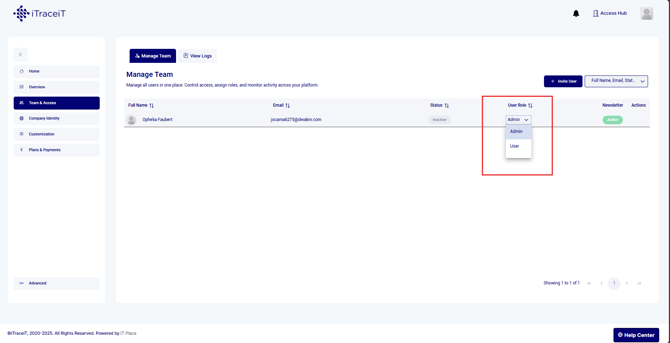
The update applies immediately, and the user’s access will change based on the role you selected.
Managing roles and permissions is an important responsibility for domain administrators. Assigning the correct level of access protects your domain and ensures each user has the tools they need. You can adjust permissions at any time from the Team and Access page as your team evolves.