
iTraceiT platform enables you to streamline stock management by allowing bulk imports and updates of inventory data.
This guide will walk you through the process, ensuring a seamless experience while minimizing errors.
1. Access the Import Tab and Guide
To begin, follow these steps:
-
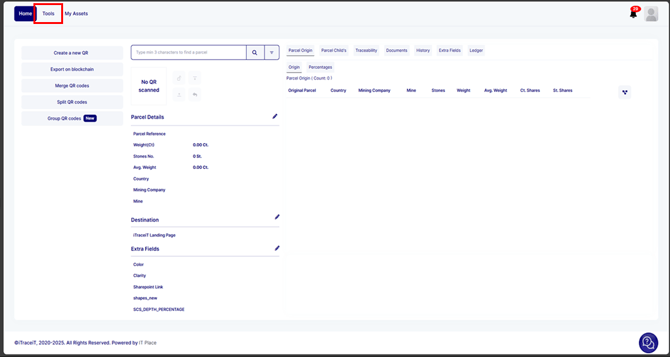
Click on the Tools tab in the iTraceiT platform.
-
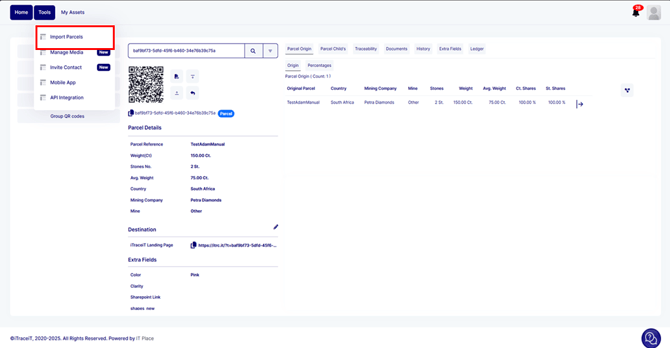
Navigate to the Import Parcels sub-tab.
-
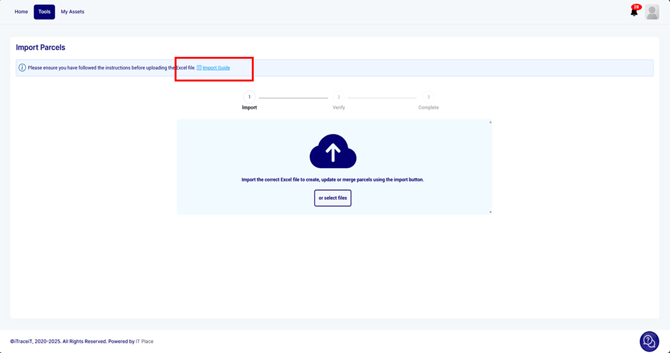
Click on the Import Guide button on the screen to read the instructions.
2. Download the Correct Template
Once you have accessed the Import Guide, select the appropriate template based on the action you want to perform:
-
Create Parcels: Upload parcel data in bulk using the provided template.
-
Update Parcels: Modify existing parcel details.
-
Merge Parcels: Combine multiple parcels under a single entry.
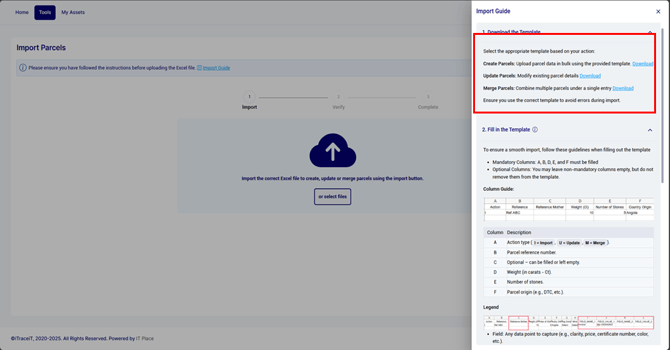
⚠️ Ensure you use the correct template to prevent errors during import.
3. Fill in the Template
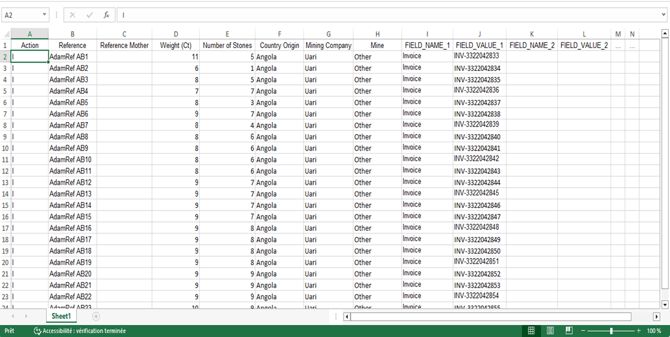
For a smooth import process, adhere to these guidelines when filling out the template:
-
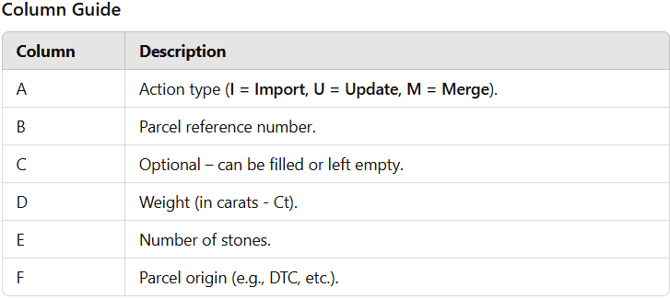
Mandatory Columns: A, B, D, E, and F must be filled.
-
Optional Columns: You may leave non-mandatory columns empty, but do not remove them from the template.
Additional Fields
-
Reference Mother: If a parcel is listed in this column, it means the parcel in the “Reference” column (child/split parcel) is linked to it.
-
Field Name & Field Value: Capture additional data points such as clarity, price, certificate number, or color.
Selecting Country Origin & Mining Company
-
Country Origin: Choose a country from the dropdown list.
-
Mining Company: Select a mining company from the dropdown list. If no mining company was set during QR creation, it will show as “Unknown.”
4. Import the File into the System
Once your file is properly filled and saved:
-
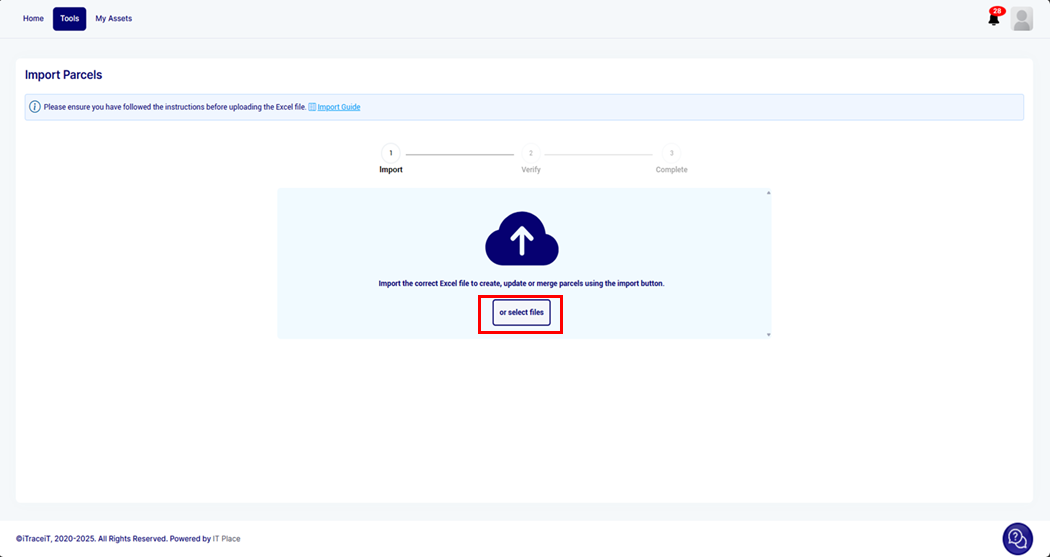
Drag and drop the file or Click on the or Select file button.
-
Follow the on-screen instructions to complete the process.
-
The system will validate the data and notify you of any errors or successful uploads.

-
Effectively managing stock through bulk imports and updates can save time, reduce errors, and improve operational efficiency. By following this guide, you ensure your inventory remains accurate and up to date within the iTraceiT platform. If you encounter any issues or need further assistance, feel free to contact our support team.