
This information can vary depending on your industry. In the diamond sector, for example, Extra Fields may include clarity, cut, color, GIA certificate numbers, or shipping references. In essence, they help provide context and depth to a QR code without being official documents.
Before Extra Fields can be used in any process whether attaching them to a QR code, exporting to blockchain, or preserving them during merges or splits, they need to be created and configured.
This setup is done only once, and only by the administrator, as it requires access to the platform’s settings.
When to Use Extra Fields
You use Extra Fields when you want to enrich QR codes with meaningful, structured data that adds business value and improves traceability. Whether you're validating authenticity, tracking shipping steps, or enabling downstream clients to filter based on product attributes, Extra Fields give you the flexibility to record what's relevant for your operation.
How to Create Extra Fields
Step 1 – Access Settings
-
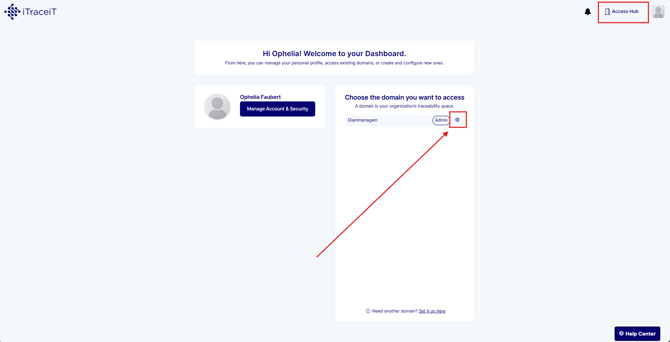
From your domain dashboard, click the gear icon next to the domain name to open your settings.
Step 2 – Create a New Extra Field
-
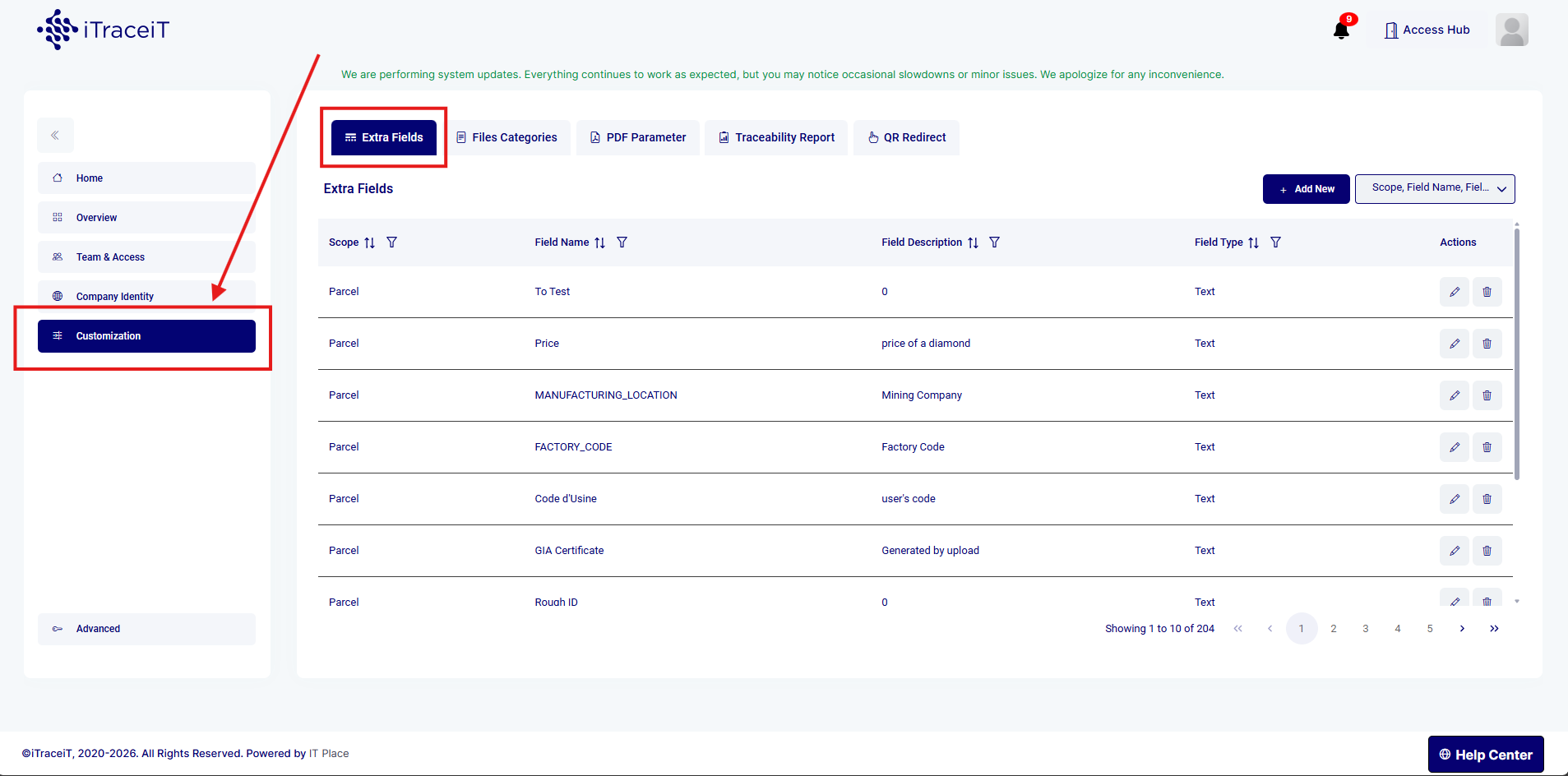
In the Settings page, click on Customization and then on Extra Fields.
-
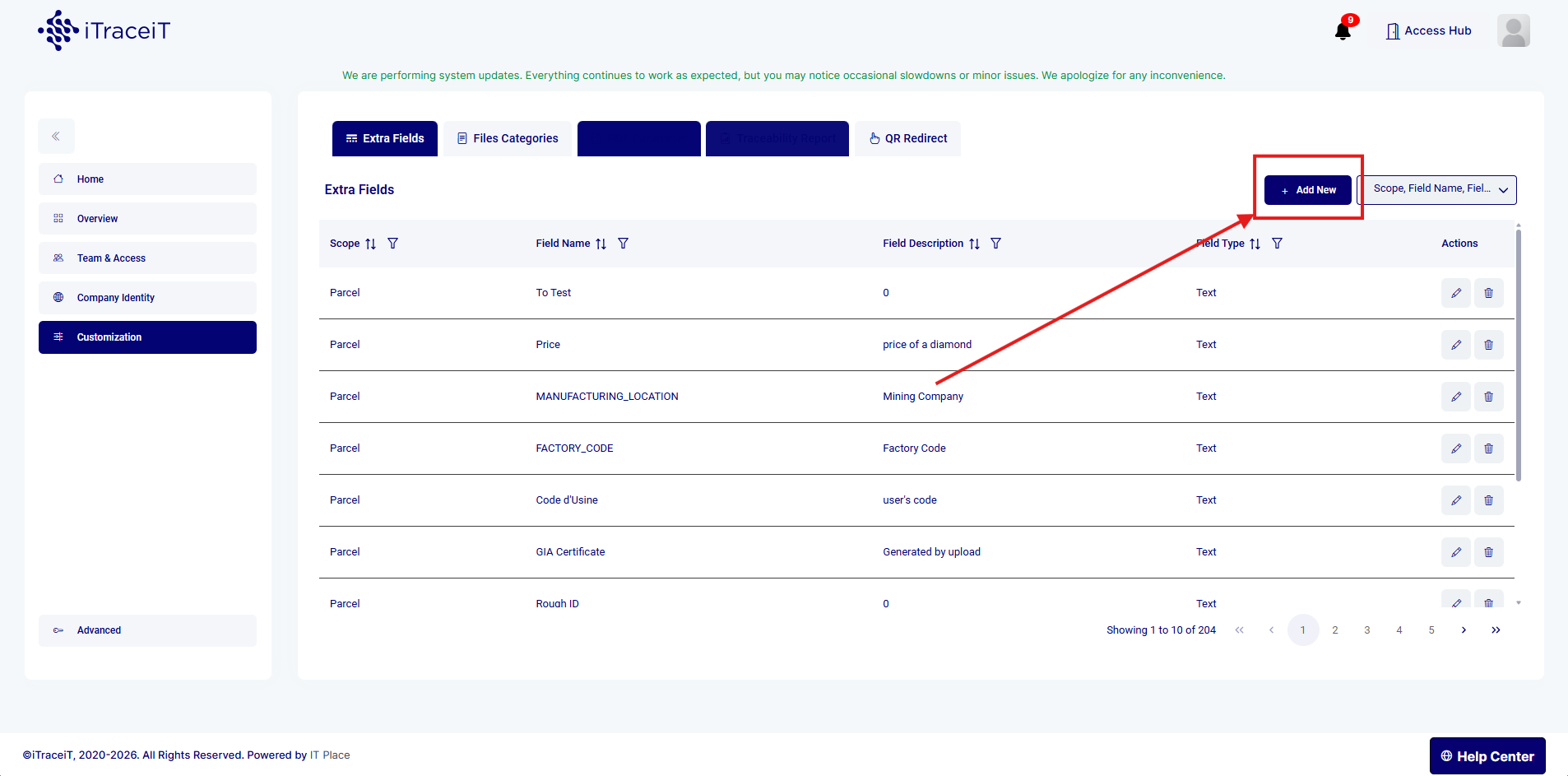
Click on Add New to begin creating a new field.
Step 3 – Configure the Extra Field
-
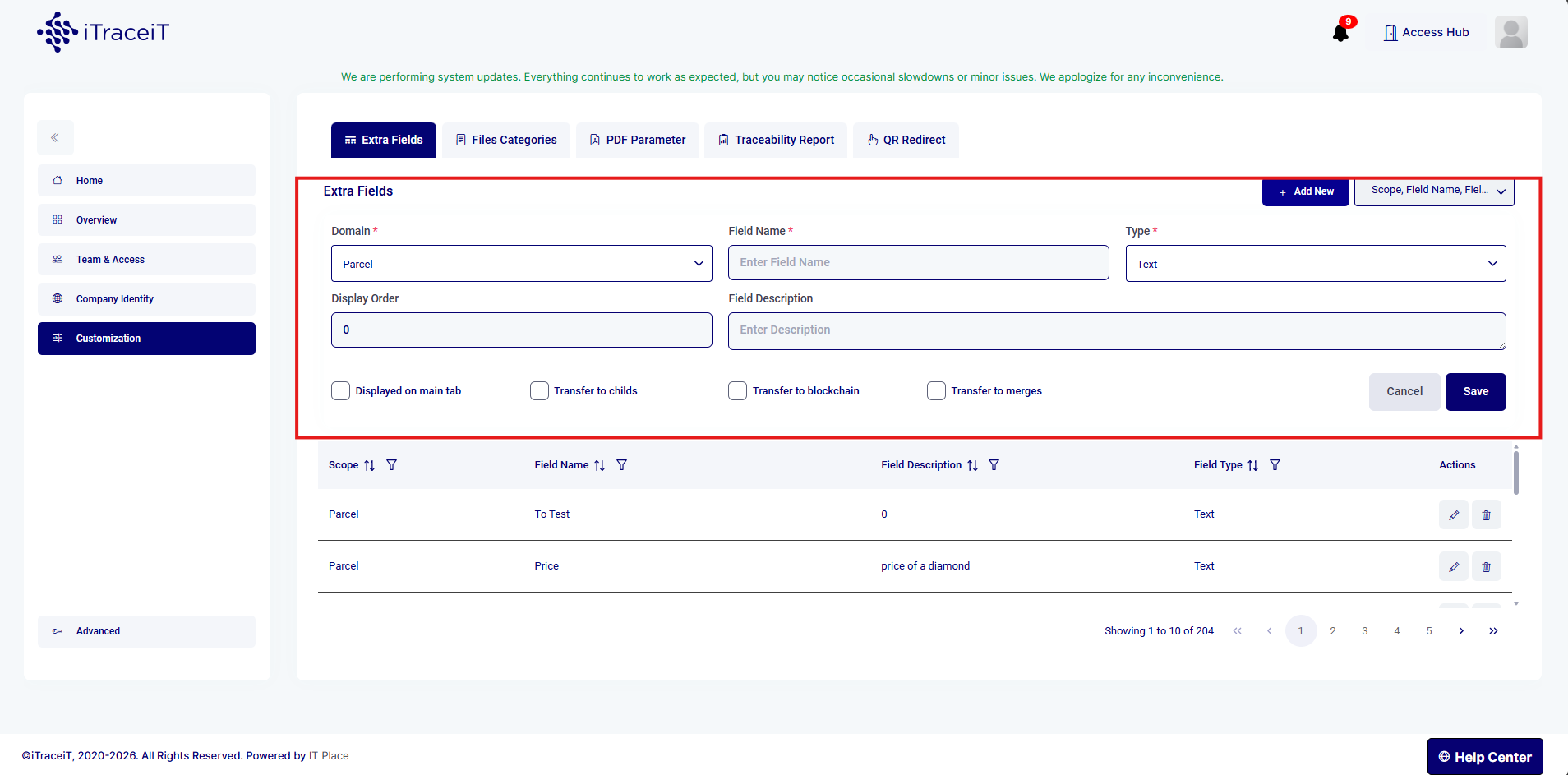
Enter a name for the field. Choose a clear, descriptive name based on the type of information it will hold (e.g., Clarity, Shipping Reference, Color).
-
Configure the transfer behavior:
-
Transfer to blockchain: The Extra Field data will be included when exporting the QR code to the blockchain.
-
Transfer to child: The data will be carried over when a QR code is split.
-
Transfer to merge: The data will be retained when QR codes are merged together.
-
-
Click Save to finalize the creation of the Extra Field.
Step 4 – Use the Extra Field When Creating or Managing QR codes
Once Extra Fields have been created:
-
Go to the homepage.
-
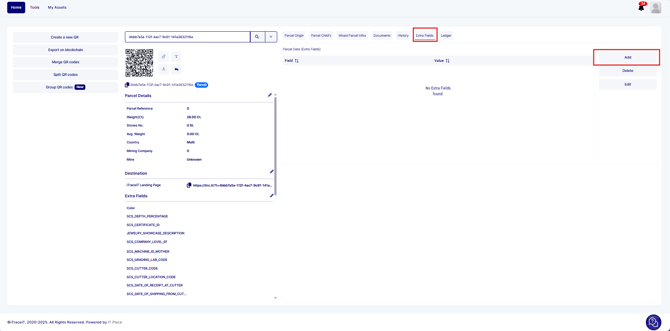
Navigate to the Extra Field tab.
-
Click Add to include Extra Field values for a specific QR code.
-
These values will now follow the QR code according to the rules defined in your configuration.
Extra Fields are a powerful way to extend your traceability capabilities beyond basic data. They allow your business to capture important, non-document information in a structured and reusable format. Whether you're dealing with product characteristics or logistical details, setting up Extra Fields ensures your QR codes remain rich in context and aligned with your operational standards. Proper setup by an administrator guarantees consistency and makes your traceability process more efficient and reliable from the start.