
This guide will walk you through the steps to upload and configure your company logo for inclusion in the traceability reports generated by iTraceiT. Only administrators have the necessary permissions to perform these actions.
-
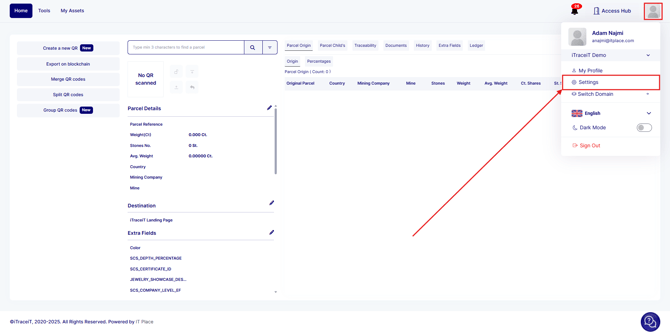
Open the settings by clicking on the account icon located in the top right corner of the screen (Please note, only the administrator of your company can access this section. If you do not have administrative access, kindly request your admin to perform this)
-
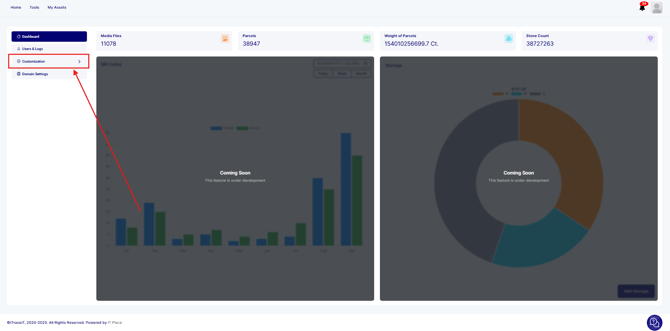
In the settings menu, click on “Customization”
-
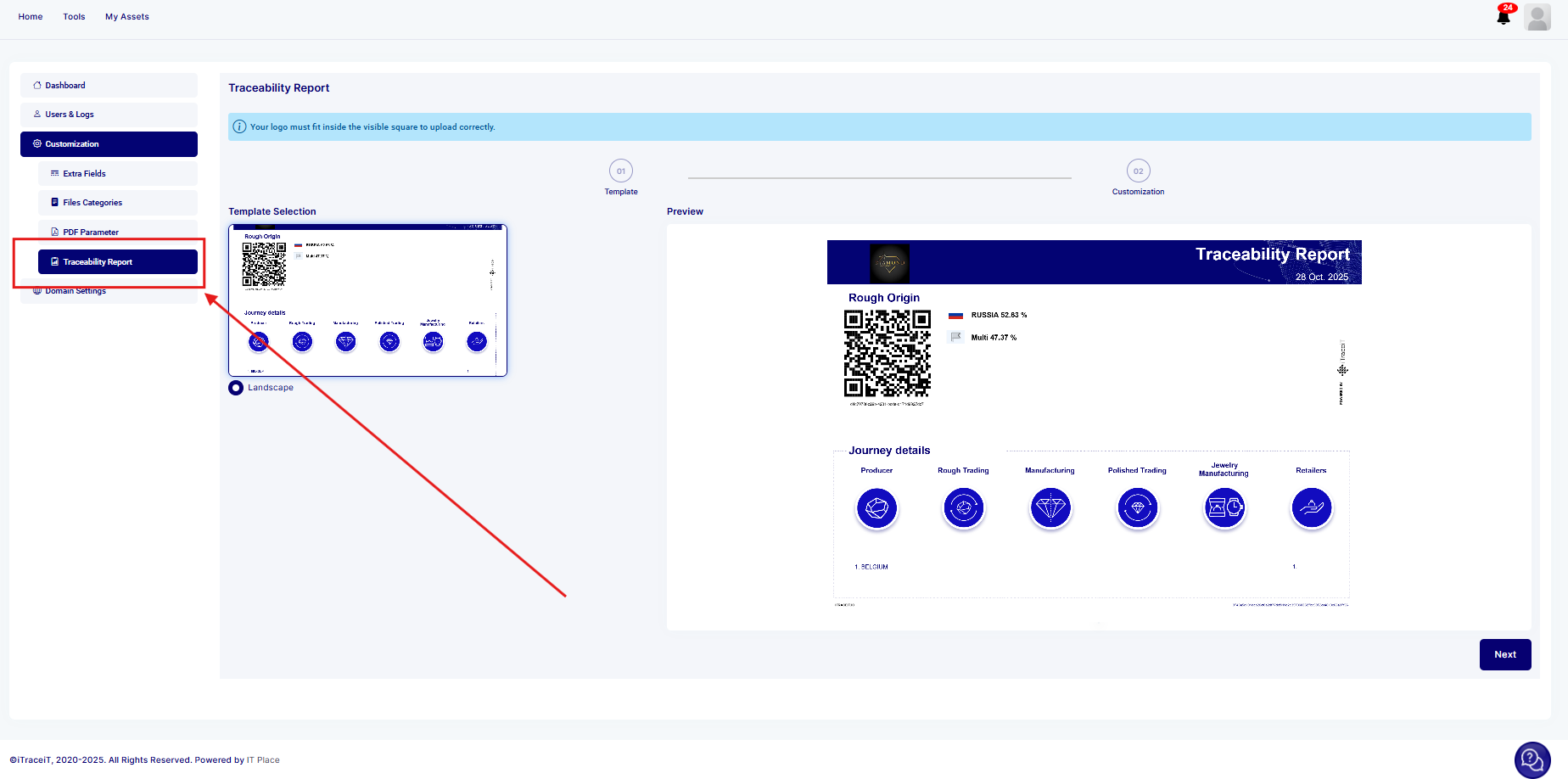
Click on "Traceability report"
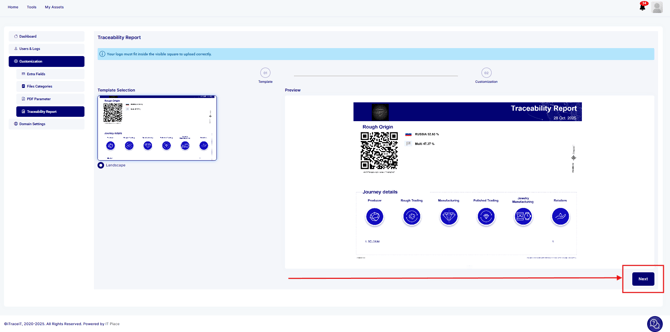
- Click on "Next"
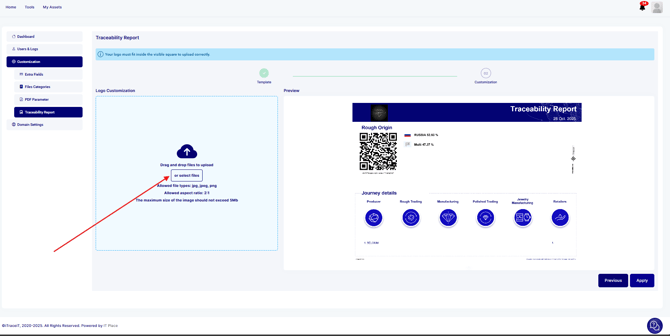
- Drag and drop your file or click on Select file
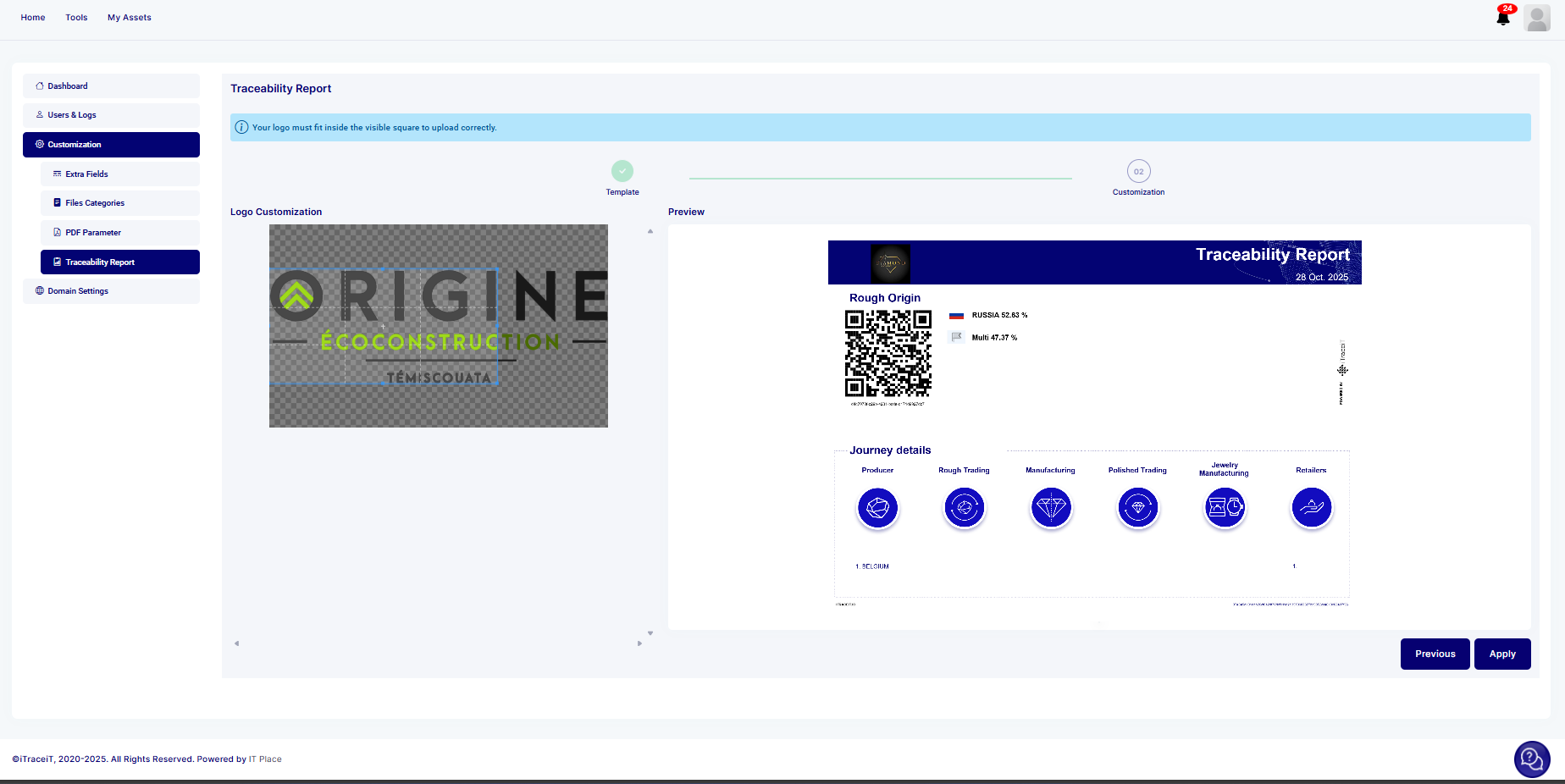
- After selecting your logo, adjust the ratio on the screen to ensure it fits within the square provided (If the logo appears too large, you may need to reduce its size before uploading it to iTraceiT)
- Once the logo fits properly as you wish, click on "Apply"
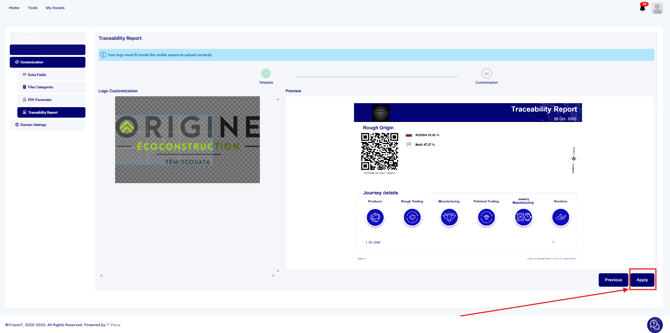
Your company logo will now be displayed on every traceability report from this point forward.
If you encounter any issues or need further assistance, please do not hesitate to reach out to our support team at support@itraceit.io.